Week starting 17th August: Good availability with most voices this week Studios reopen 9am Thursday 20th August Need help choosing a voice? Send us your brief
Get a quote

Categorising Primary Demos

Updated

The Importance Of Having A Variety Of Demos

Our website has dedicated sections to help producers and clients find the right voice for a specific genre of read - for example Commercial, Explainer, eLearning, Telephone menu and more. When visiting these sections, clients expect to hear demo montages that match the recording style. We’ve found this really helps reassure producers that a voice is suitable for their type of content, and it often turns browsing into bookings.

To get the most exposure on our site, we recommend uploading a separate demo montage for each category that suits your vocal range and experience. The more categories you cover, the more chances you have to be discovered.

You can manage linking your demos to the main category sections yourself (see below for details).

If you add a demo that isn’t linked to a section, don’t worry - our team is notified and we’ll review it to see if it’s a good fit for any categories and link it for you.
Initial Steps

Sign in to Voiceovers.co.uk (see link immediately below if you need help with this). Then head to your profile, and put it into Admin mode.

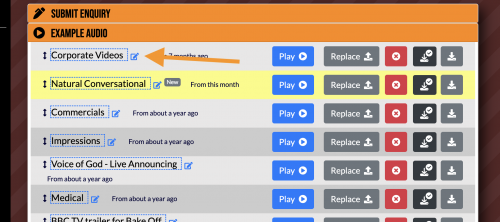
Next, head to your Example Audio section. You'll see a small edit icon next to each demo title.
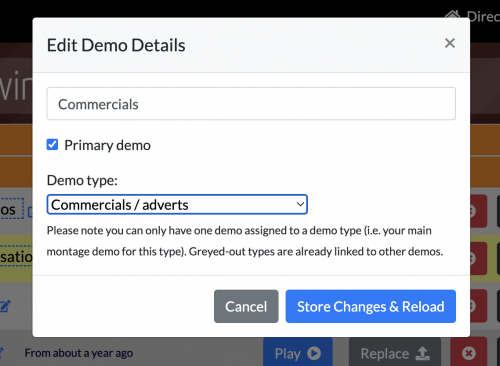
Clicking on the edit icon will open the Edit Demo Details box. This box lets you switch a demo between Primary and Secondary.
Clicking on the edit icon will open the Edit Demo Details box. This box lets you switch a demo between Primary and Secondary. A Primary demo is one of your main montages, while Secondary demos are usually shorter clips showcasing specific characters or accents. To assign a demo to a category, use the Demo type drop-down menu. Your main demos may already be assigned to categories if appropriate. Please note: You can only assign one demo to a category, and each demo can only be in one category at a time.
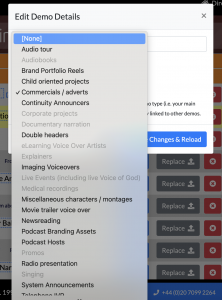
When you open the drop-down, a 'tick' will appear next to a category if it's already assigned to this demo.
When you open the drop-down, a 'tick' will appear next to a category if it's already assigned to this demo. Greyed-out entries indicate that a demo is already linked to that category. Ungreyed entries are available categories you may want to assign a demo to.