
Week starting 17th August: Good availability with most voices this week Studios reopen 9am Thursday 20th August Need help choosing a voice? Send us your brief
Get a quote

Add Hashtags to Your Booking Preferences

Updated

Overview

You can now set up to six ‘hashtags’ in your Booking Preferences section.

Think of these as your personal elevator pitch in keywords. If you were promoting yourself in a social media-style post, something short and snappy that highlights what makes you you. The hashtags that would go at the end.

What are the key things that make you stand out from other voiceover artists?

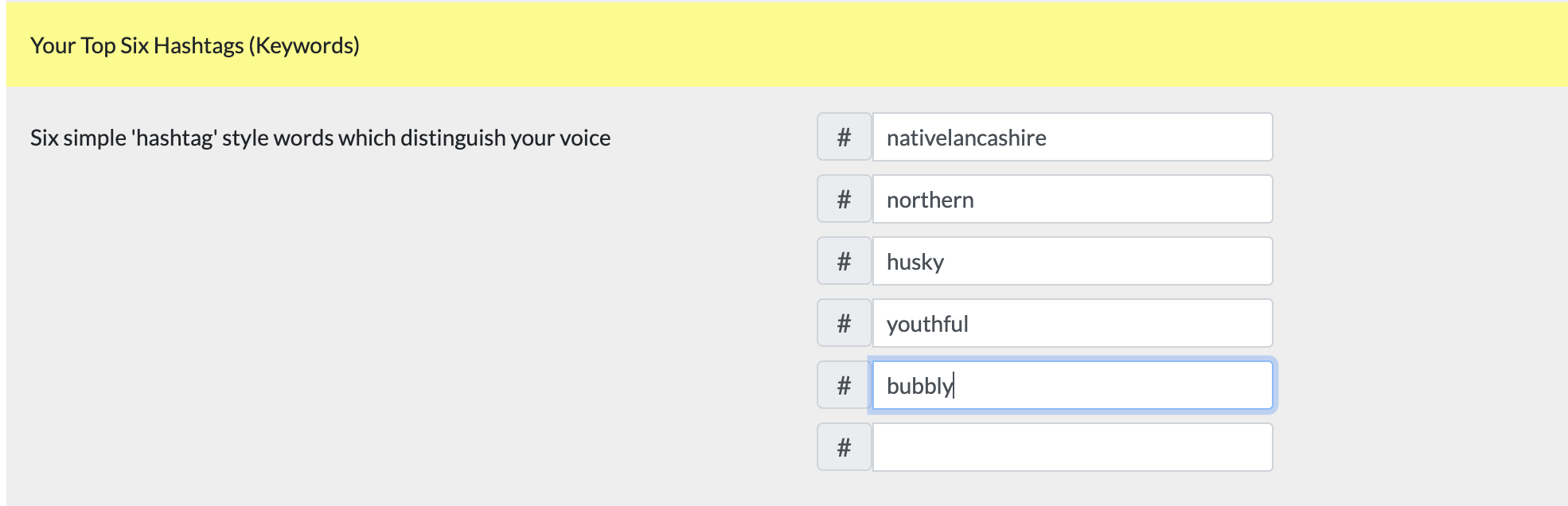
Perhaps it’s your vocal style (#authoritative), your niche (#gamingcharacters), your USP (#nativelancashire), or your location (#manchesterbased). These are the kind of attention-grabbing, memorable tags that producers might search for - or that we might use behind the scenes to help match you with suitable jobs.

We’ll be weaving your chosen hashtags into your profile and using them to improve how we promote your voice to potential clients. They won’t be publicly displayed as hashtags, but they’ll be a key part of how we filter and understand what makes your voice special.
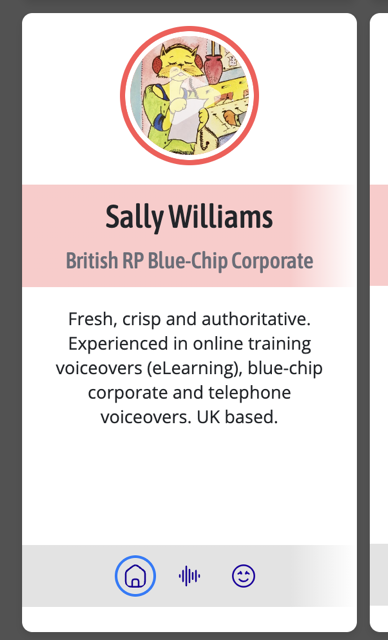
As part of our upcoming website redesign, we’ll be introducing a new ‘heading’ line under your name on your profile.
As part of our upcoming website redesign, we’ll be introducing a new ‘heading’ line under your name on your profile. A short, eye-catching phrase that summarises your voice offering. We’ll be using the hashtags you provide to help shape this heading text, so it’s more tailored to your strengths and the kind of work you're aiming for. • Choose words that represent your strengths or differentiators. • Stick to voice-related terms – things that help a client get a clear, quick idea of your sound or specialism. • Think about what a producer might search for or how they might describe your voice.

How to Set Your Hashtags

Sign in as normal and head to your profile page. Click ‘Admin mode’, then click on 'Booking Preferences'.
Sign in as normal and head to your profile page. Click ‘Admin mode’, then click on 'Booking Preferences'. Add your hashtags (up to six), and put them in order of importance. Click 'Save Changes' to ensure they are stored. You don’t have to use all six - if three or four feel right for you, that’s totally fine.